 WidPlayer
Features
Everything WidPlayer does, in detail.
The home page says what it's for. This one explains how it works, what each app allows and what the widget asks of the system.
How it works
WidPlayer doesn't play audio. The engine is always the app you already use, running in the background. The widget reads macOS's Now Playing session — the same one that feeds Control Center — and sends playback commands back to it. The sound, the account and the library stay exactly where they are.
There are two layers. The first is universal: it works with any app that publishes Now Playing, shows track, artist and artwork, and sends play, pause and track changes. Commands go to the active session, with no way to pick a recipient. The second exists only in apps with an AppleScript dictionary — Apple Music and Spotify — and adds exact position, seeking, the app's own volume and addressed commands, which reach the right app even while another one is playing.
What each app allows
Nothing in this table was assumed: every row was observed against the real app, and the interface adapts to the result.
| App | What the widget can do |
|---|---|
| Apple Music | Everything: real position, seek, per-app volume, shuffle and repeat, addressed commands. |
| Spotify | Everything, like Apple Music — and seeking works through both channels. |
| Amazon Music | Full transport. The progress bar is an indicator only: the app ignores seek and never publishes position. With another app playing, the widget shows the paused track and can resume it (see Resuming). |
| TIDAL | Full transport, plus seek and true position coming from the stream. |
| Deezer | Play, pause, next and true position. No previous and no seek — the app ignores both. Resumes outside the session, like Amazon Music. |
| Safari | Full transport, seek and true position. The session reports itself as com.apple.WebKit.GPU. |
| Google Chrome | Play, pause and seek. No track skipping: next does nothing and previous rewinds the media. |
| YouTube Music | Shortcut: opens the PWA or the site. The browser is what plays, so the browser is the source. |
Any other app that publishes Now Playing shows up in the widget and accepts play and pause, at the very least — even one WidPlayer has never seen. Only what has been measured goes into this table.
Honest controls
The progress bar is draggable only where seeking has actually been verified. The volume slider tells you whether it is moving the app's own volume or the system's. A button the app would silently swallow shows up disabled, with the reason — because a click that does nothing is worse than a control that admits it can't.
In fixed mode — the widget pinned to a chosen player — an app without AppleScript gets no commands while another one is playing, because the command would land on the wrong app. The affected controls turn inactive, with the reason in plain sight.
On the desktop
- Desktop level, on every Space. It sits below your windows, like the system widgets, and never steals focus. If you prefer, an option keeps it above your windows.
- Native grid. Drag it and it snaps to the macOS widget grid and remembers where you left it. If the display it was on is disconnected, the widget comes back to a visible screen.
- Two sizes. 2×1, with large artwork and vertical volume; 1×1, with the same controls and horizontal volume. Switching is live and in place.
- Artwork color. The glass is tinted by the average color of the artwork that's playing.
- Marquee. Long titles scroll inside the card, pausing on every loop.
- Card shortcuts. Double-click opens the player; clicking the source icon switches apps; right-click opens the full menu.
Menu bar and shortcut
- Menu. Shows the current track and playback buttons that don't close the menu — pause and skip in a row. It also lets you switch apps, and closes itself after a few idle seconds.
- Preview without clicking. While music is playing, rest the pointer on the icon and a preview opens with the track and the controls. A button in it opens the full menu.
- Global shortcut. ⌃⌥⌘M brings the widget forward when windows cover it; press again to send it back to the desktop. The shortcut can be changed in Preferences and doesn't need Accessibility permission.
- No Dock icon. WidPlayer lives in the menu bar.
When the player hangs
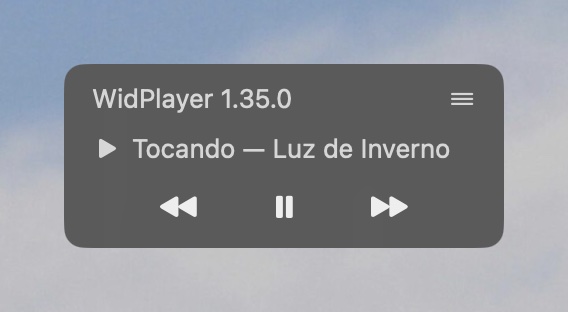
After every command, the widget checks for 2.5 seconds whether the player reacted — music starting or stopping, the track changing. If nothing changes, the card says so and offers Reopen, which quits the hung app (forcefully, if it ignores the request) and opens it again.
Recovery is never automatic: a false alarm must not take down the app that was playing. With Accessibility permission, the alert is precise — “is not responding”, with the freeze confirmed on the process. Without it, the widget states only what it saw: “did not respond”.
One limit outside WidPlayer's control: relaunching an app wipes its queue. In Amazon Music, playback doesn't resume by itself after the relaunch.
Resuming paused apps
While another app is playing, Amazon Music and Deezer keep showing in the widget with the track they stopped on — title, artist, artwork and state.
With Resume paused apps with the keyboard turned on, the widget's play button starts that track again in place, without opening the app or bringing it forward. The option ships off, asks for Accessibility only when turned on, and first checks whether a text field has focus in the app, so it never types in the wrong place. TIDAL doesn't respond to this technique and is left out.
Volume
The slider tells you what it's moving. In Apple Music and Spotify, it's the app's own volume — the rest of the system stays put. Everywhere else, it's the system volume. The mute button acts directly on the macOS output device.
Permissions and privacy
- Automation. macOS asks the first time the widget talks to Apple Music or Spotify. Denying it breaks nothing: those apps' extra features turn off and everything else keeps working.
- Accessibility. Optional. Used only for resuming paused apps and for confirming that a player has hung.
- No account, no telemetry. WidPlayer asks for no sign-in and sends no usage data. What you listen to never leaves your Mac.
- Diagnostics on demand. In Preferences, “Copy diagnostics” and “Report a problem” gather app and macOS versions, architecture and permission states — never the track that's playing. The report only reaches support if you send the email yourself.
- Signed and notarized. The app is signed with a Developer ID and notarized by Apple; macOS checks where it comes from before opening it.
Requirements
- macOS 26 or later.
- A Mac with Apple Silicon.
- At least one music app that publishes Now Playing — Apple Music, Spotify, Amazon Music, TIDAL, Deezer or a browser.
- Interface in English and Portuguese.